Organisations
What an organisation is, the organisations list, creating a new one, name and colour, switching the active one, and deleting it along with its data.
Updated 19.10.2026
Table of contents
An organisation is a team's shared space: mailboxes, members, labels, multi-inboxes, rules and settings all belong to it. Everything you see in the inbox comes from a single organisation — the active one. One person can belong to several organisations, for example their own company and a client's.
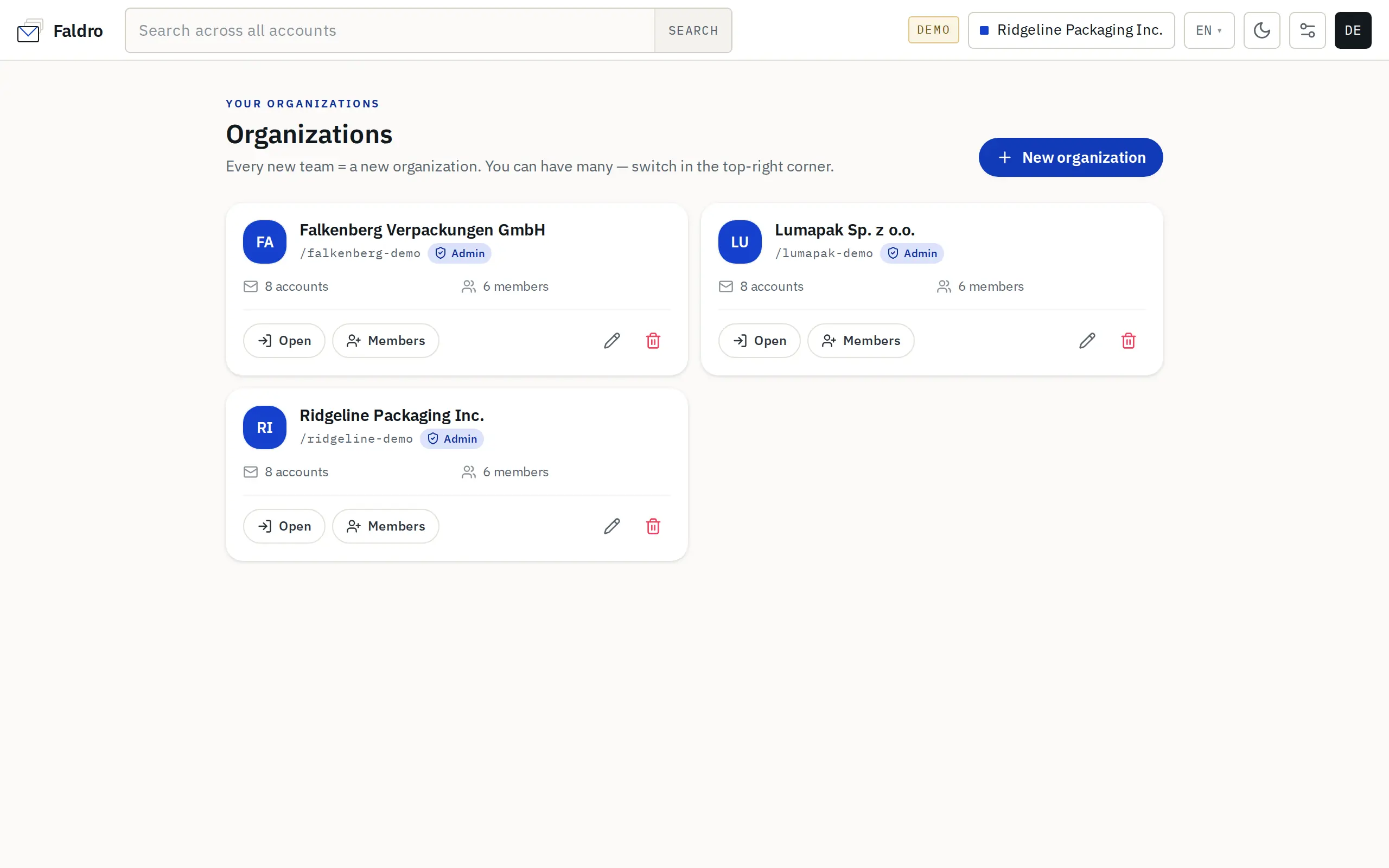
The organisations list
Open the Organizations screen from the switcher in the top-right corner: Manage organizations. Each card shows the organisation's name and colour, your role in it (Admin or Member), the number of mail accounts and the number of members.
Buttons on the card:
| Button | What it does | Who sees it |
|---|---|---|
| Open | Switches to this organisation and opens its inbox. | Every member |
| Members | Switches to the organisation and goes straight to the members screen. | Admin |
| Edit | Change the name and colour. | Admin |
| Delete | Delete the organisation and everything in it (see below). | Admin |
New organisation
Click New organization on the list or Create new organization in the switcher. The Add organization form has two fields: Name (up to 80 characters) and Color, which marks the organisation in the switcher. After you click Add, you become the admin of the new organisation; Faldro activates it straight away and takes you to its (empty) inbox — the next step is connecting a mailbox.
How many organisations you can create depends on your plan. What counts are organisations you own (as their first admin); ones you were invited to don't.
| Situation | Organisations |
|---|---|
| Trial, or no paid subscription | 1 |
| Start plan | 1 |
| Team plan | 3 |
| Company plan | 10 |
| Scale plan | unlimited |
Once you hit the limit, the form tells you how many organisations you already have. Plan details: Plans and limits.
Changing the name and colour
Edit on the card opens the Edit organization form. The new name and colour show up for every member — in the switcher, on the organisations list and at the top of the members screen. Only an admin of that organisation can edit it.
The active organisation
You always work in exactly one organisation. Switch it from the menu in the top-right corner (the Your organizations list) or with Open on the list. Switching changes everything: accounts in the left sidebar, folders, counters, search results and settings screens.
The active organisation is remembered per browser session. On another device (or after signing in again) you can be working in a different organisation than here.
Roles belong to the organisation, not the person. You can be an admin in your own company and a view-only member at a client's. See Permission scopes.
Deleting an organisation
The bin icon on the card (admins only) deletes the organisation together with its data in Faldro: mail accounts, messages, attachments, labels and the search index. Members lose access and pending invitations stop working.
Safeguards against mistakes:
- The browser asks you to type the organisation's name — a different name cancels the operation.
- Faldro asks you to re-enter your Faldro password (Identity confirmation).
Mail at your provider (on the IMAP server) is not touched — only the copy in Faldro is deleted. The start and completion of the deletion are recorded in the audit log.
This can't be undone. If you need a copy, download a backup first with Download backup on the members screen — see Backup and export.
You can also delete it in Settings → Delete the organization and all data: that screen deletes the active organisation, shows how much data will be removed and, besides the name, requires ticking a confirmation box. Details: Disconnecting and deleting.
Did not find the answer?
Check the help section with typical problems or write to us — we reply on working days.