New message
The new message window — choosing the mailbox and sender address, recipients with suggestions, the editor, signature, template, pre-send checks and 30 seconds to undo.
Updated 19.10.2026
Table of contents
Open the window with the New message button at the top of the left sidebar. Members with the "View + send" scope or higher can write; with "View only" the button isn't there. Scopes are described in Permission scopes.
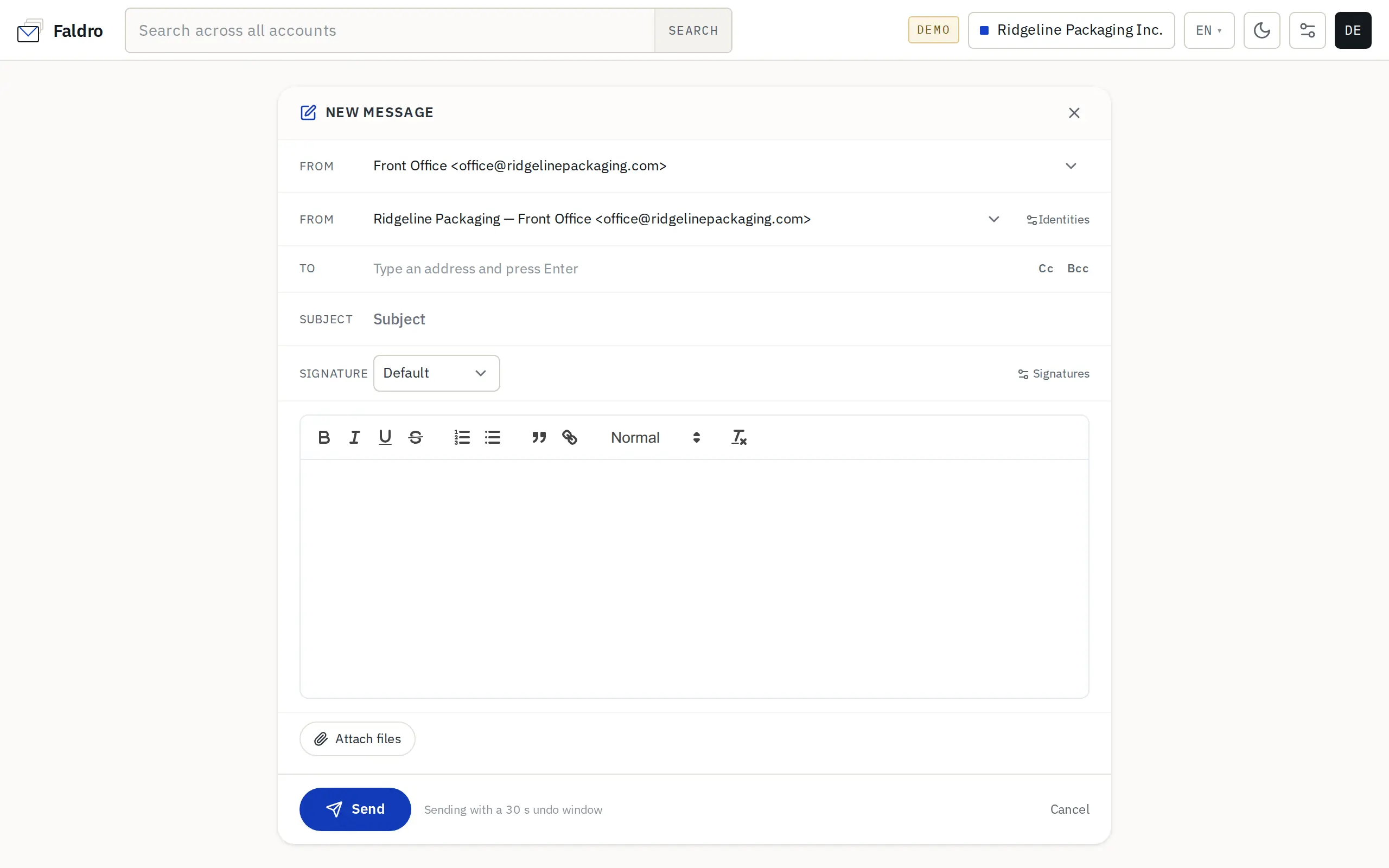
Message fields
| Field | What it does |
|---|---|
| From (first row) | The mailbox whose SMTP server sends the message. An account without SMTP configured is marked "⚠ no SMTP". A member limited to a multi-inbox only sees their own mailboxes. |
| From (second row) | The address the recipient sees. This row only appears when the selected mailbox has more than one address — see Sending identities. |
| To | Required. Click Cc or Bcc on the right to reveal the copy and blind-copy fields. |
| Subject | Required for a new message. |
| Signature | Picks one of the mailbox's signatures; hidden when the mailbox has none. Details: Signatures. |
| Template | The "Insert a template…" list — shown when the organisation has reply templates. |
If the domain of the selected address failed its last DNS check (SPF/DKIM/DMARC), a yellow bar with a See details link appears below the sender. It doesn't block sending — it tells you the message may land in spam. More: Domains.
Recipients and suggestions
Confirm an address with Enter, Tab, a comma or a semicolon — it turns into a "chip". Backspace in an empty field removes the last chip, clicking a chip lets you edit it, and a pasted list of addresses splits into chips by itself. An address with an invalid format is marked red.
As you type, suggestions come from the organisation's address book. Faldro builds it on its own: from addresses someone in the organisation has already sent to, and from the senders of incoming mail.
Editor and attachments
You write in a rich-text editor; Faldro sends the message as HTML together with a plain-text version. Add files with Attach files or by dragging them onto the window — limits and details are in Attachments.
While you type, the message saves itself as a draft (the "Saved · time" status in the window footer). See Drafts.
Pre-send checks
Before the message goes out, Faldro checks two things and shows the result in a box below the editor:
- Daily limit — if the mailbox or domain has reached its configured daily sending limit, you'll see a note with the number of messages sent. It's a warning, not a block: whether mail is rejected is up to the mail provider. Limits are set under Sending limits.
- Many recipients — when To, Cc and Bcc together hold more addresses than the installation's threshold (25 by default), sending stops once with a question. Send anyway sends; Back to editing lets you trim the list. Faldro isn't a bulk-mail tool — with many recipients the provider may treat the message as spam.
Sending and "Undo"
Send doesn't send immediately: the message waits in the queue for 30 seconds (hence the hint "Sending with a 30 s undo window"). You're taken back to the inbox, and the green "Sending in 30 s." bar has an Undo button. Clicking it within that time stops the send and — just like Gmail — reopens the message window with the text, recipients and subject restored as a draft. You can fix it and send again, or simply close it.
Attachments don't come back with the content — the info bar "Send cancelled — the message is back in the composer. Attachments need to be added again." reminds you to add them once more.
Next to Send there's a Schedule button — sending at a chosen time, described in Scheduled sending.
A copy of the sent message goes to the Sent folder, including on the mailbox's IMAP server. If sending fails, the window comes back with your fields filled in and the server's error message; what to do next is in Help: sending fails.
Cancel and the × in the window header take you back to the inbox — the draft stays.
Did not find the answer?
Check the help section with typical problems or write to us — we reply on working days.