Labels
The organisation's coloured labels — created and edited by admins, applied to threads, used to filter the list from the sidebar.
Updated 19.10.2026
Table of contents
Labels are coloured tags you attach to threads, e.g. "Invoices", "Client A", "Urgent". A thread can carry any number of labels at once — unlike a folder, of which there's only one.
How they differ from folders
| Label | Folder | |
|---|---|---|
| Where it lives | In Faldro only | On the mail server (IMAP) |
| How many per thread | As many as you like | One folder per message |
| Reach | The whole organisation, every mailbox | One mailbox |
| Who creates it | Organisation admins | Anyone allowed to change mail |
You won't see labels in other mail clients or in your provider's webmail — they're part of Faldro. If you need structure that's visible on the server too, use folders.
Creating and editing labels
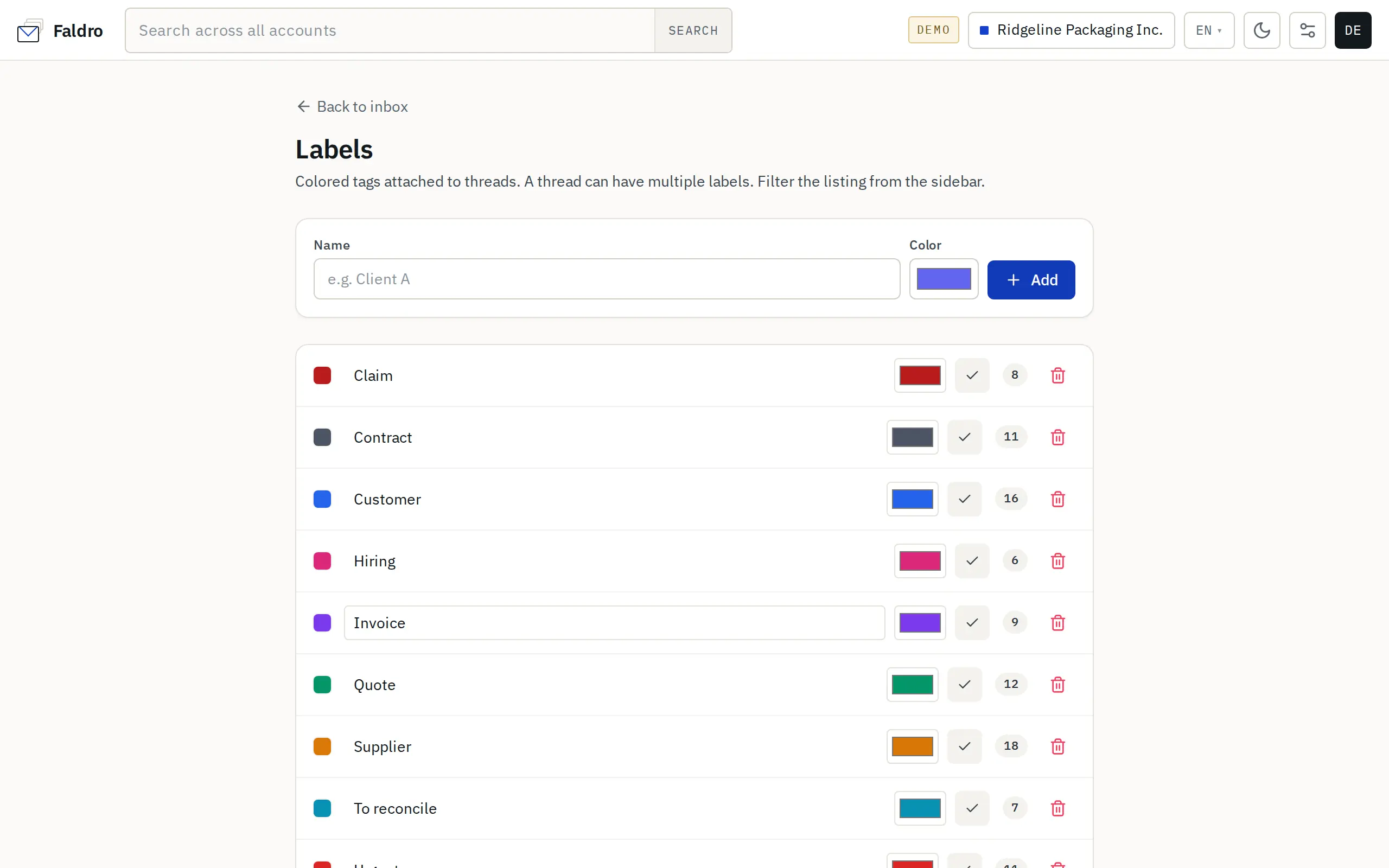
Labels are managed by the organisation's admins: Settings → Labels, or the Manage labels link next to the Labels section in the left sidebar.
- Type a name in the Name field (e.g. "Client A"), pick a Color and click Add.
- To change an existing label's name or colour, edit its row and click the tick button.
- The number next to a label is how many threads carry it.
- The bin icon deletes the label — after confirmation it's removed from every thread. The threads themselves stay.
Changes save without reloading the page. Labels are shared across the organisation: every member sees the same names and colours.
Applying labels to a thread
- Open the thread.
- Click Labels in the bar above it (or press l).
- Under Label as, tick or untick labels.
- Click Apply.
Labels appear in front of the thread's subject and in its row in the list. Clicking a label next to the subject shows every thread with that label.
Anyone with at least the "View + send" scope can apply labels. With "View only" you can see labels but not change them — see Permission scopes.
Labels are applied to one thread at a time — the bulk-actions bar has no labels. To tag many threads automatically, use a routing rule with the Apply label action: it runs on incoming mail during sync.
Filtering the list
The Labels section in the left sidebar lists all of the organisation's labels with their thread counts. Clicking a label narrows the current folder to threads with that label, and a "Label: name" chip appears above the list. Clicking the same label in the sidebar again, or the × on the chip, removes the filter.
The filter applies within the selected folder and account — "Invoices" in Inbox isn't the same as "Invoices" in Sent. Picking a label clears any selected multi-inbox.
The Labels section shows up once the organisation has at least one label; admins always see it (with an Add label link while there are none yet).
Did not find the answer?
Check the help section with typical problems or write to us — we reply on working days.