Account and organisation
Registration, e-mail confirmation, the organisation created automatically for you, and switching between organisations.
Updated 02.09.2026
Table of contents
Registration
You create an account on the registration page: your name (or company name), an e-mail address and a password. This address is used for logging in and notifications — it doesn't have to be one of the mailboxes you connect later.
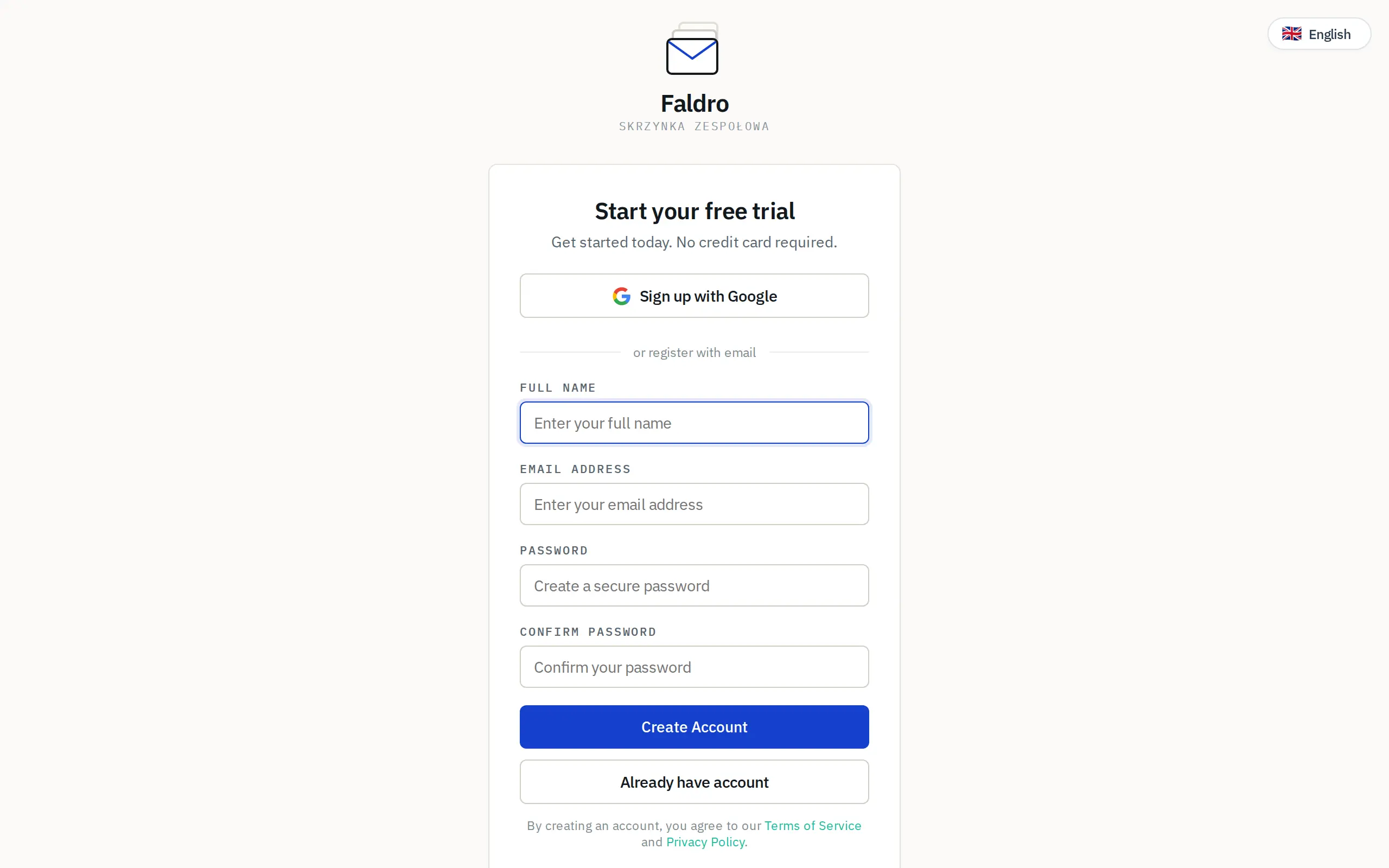
After registering, we send a message with a confirmation link. Until you click the link, some screens (including the dashboard) will ask you to verify. If the message hasn't arrived, check your spam folder and use the resend button on the verification screen.
The organisation creates itself
The moment you register, Faldro creates your first organisation and gives you the admin role in it. The organisation's name is your name from registration; you can change it in Settings → Organizations, where you can also set the colour the organisation uses to mark itself in the switcher.
If someone invited you to their organisation via a link, you don't create a new one — after accepting the invitation you land directly in the inviter's organisation, with the permission scope they chose. Invitations are covered on the Members and invitations page.
Switching organisations
One person can belong to multiple organisations, but works in only one at a time — the active one. The switcher is in the top-right corner of the inbox. Switching changes everything: the list of mailboxes, folders, counters, settings and search results.

A new organisation alongside an existing one: Settings → Organizations → New organisation. Each organisation has its own plan and its own limits.
Language and theme
You choose the interface language (Polish, German, English) in the header; the setting is saved to your account, so it applies on every device. The icon next to the language switches the light/dark theme and is remembered in your browser.
What's next
Move on to connecting your first mailbox, or — if you're moving addresses from Gmail — run the migration wizard.
Did not find the answer?
Check the help section with typical problems or write to us — we reply on working days.