Gmail migration wizard
Step by step through the wizard that moves addresses previously handled in Gmail via "Send as" and fetching from other accounts.
Updated 02.09.2026
Table of contents
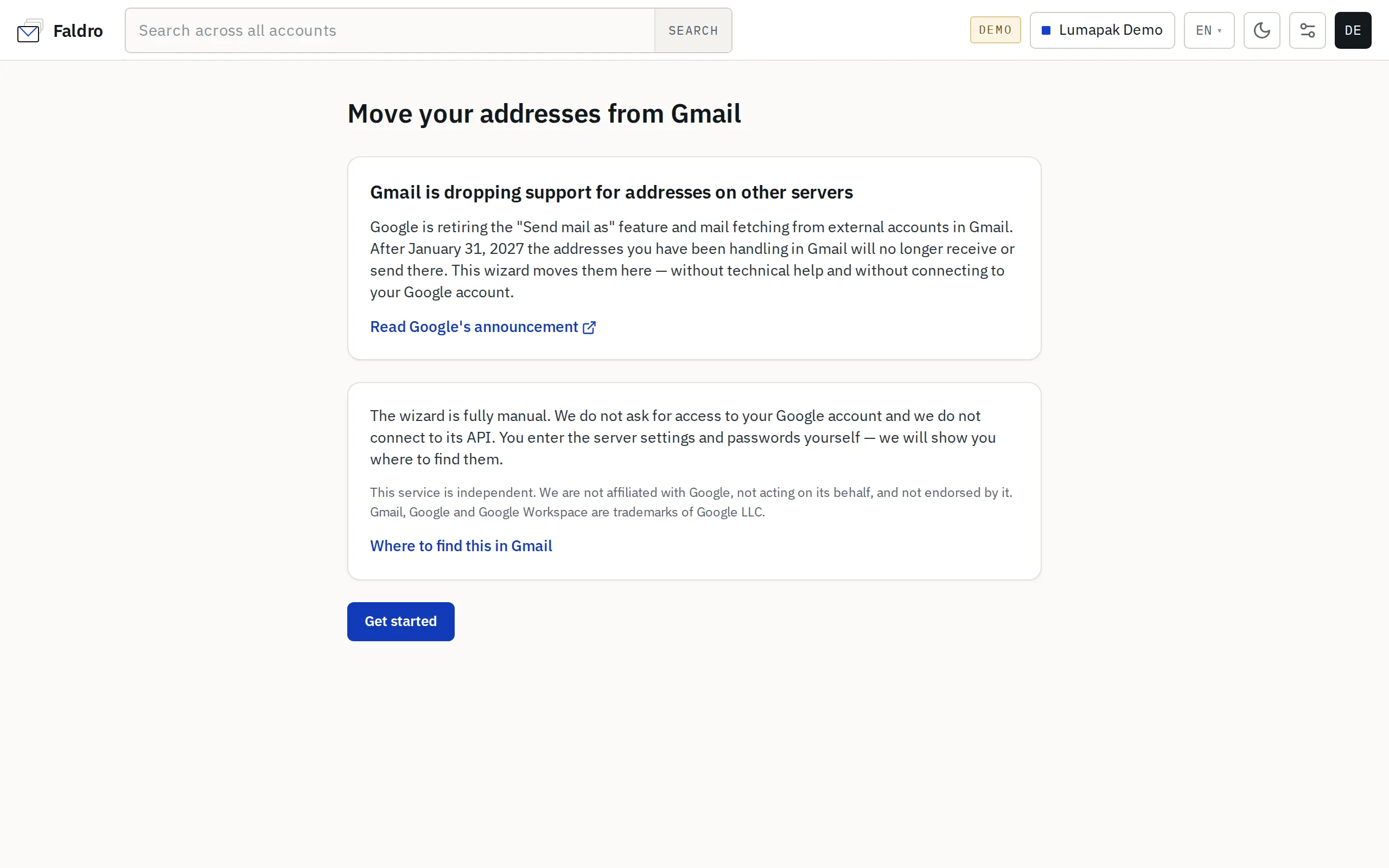
The wizard is at Settings → Move your addresses from Gmail (and, for a new account with no mailboxes, right on the getting-started list). It's entirely manual: Faldro doesn't ask for access to your Google account and doesn't connect to its API. You enter the server settings and passwords yourself; the wizard shows you where to find them in Gmail.
Wizard steps
- Address — enter the address you've been handling in Gmail so far. Faldro tries to detect its server settings (provider autoconfig → provider list → port check).
- Credentials — you review the detected settings and enter the password. If the provider is recognised, you get a hint, e.g. about an app password. Before anything is saved, the wizard connects to the incoming and outgoing servers.
- Type — you decide what the address should be:
- A separate mailbox — we fetch mail from it and show it as a separate account in the list.
- A sender identity for an existing mailbox — sending only: the address appears in the "From" field, while incoming mail stays where it was (e.g. on a forward).
- Another address? — people migrating from Gmail usually have several addresses; you can add them all in one pass.
- Verification — for each address you see receiving, sending, the number of messages fetched, and the date of the newest one. Check again refreshes the result; Finish closes the run.
We don't save passwords in the wizard's progress. If you stop partway through and come back later (Resume the interrupted migration), we'll ask for the password again.
Where to find this in Gmail
The Where to find this in Gmail link opens a guide: Gmail Settings → Accounts and Import → the "Send mail as" and "Check mail from other accounts" sections. For each address, Gmail shows the server and login it used to connect — these are the same values you enter in the wizard. Gmail doesn't show passwords; if you don't remember one, set a new one in the address's provider panel.
What happens after you finish
- Mailboxes added as a "separate mailbox" start syncing and appear in the left sidebar.
- Sender identities go to Settings → Sending identities; you can pick them in the "From" field when writing a message.
- It's worth checking domains right away in Settings → Domains and deliverability (SPF/DKIM/DMARC), so mail sent from the new location doesn't land in spam — see Domain readiness.
Background on the Gmail change and the deadlines: Help: Gmail, January 2027.
Did not find the answer?
Check the help section with typical problems or write to us — we reply on working days.