What Faldro is
One inbox in your browser for many addresses, domains and people. Concepts that come up throughout the documentation.
Updated 02.09.2026
Table of contents
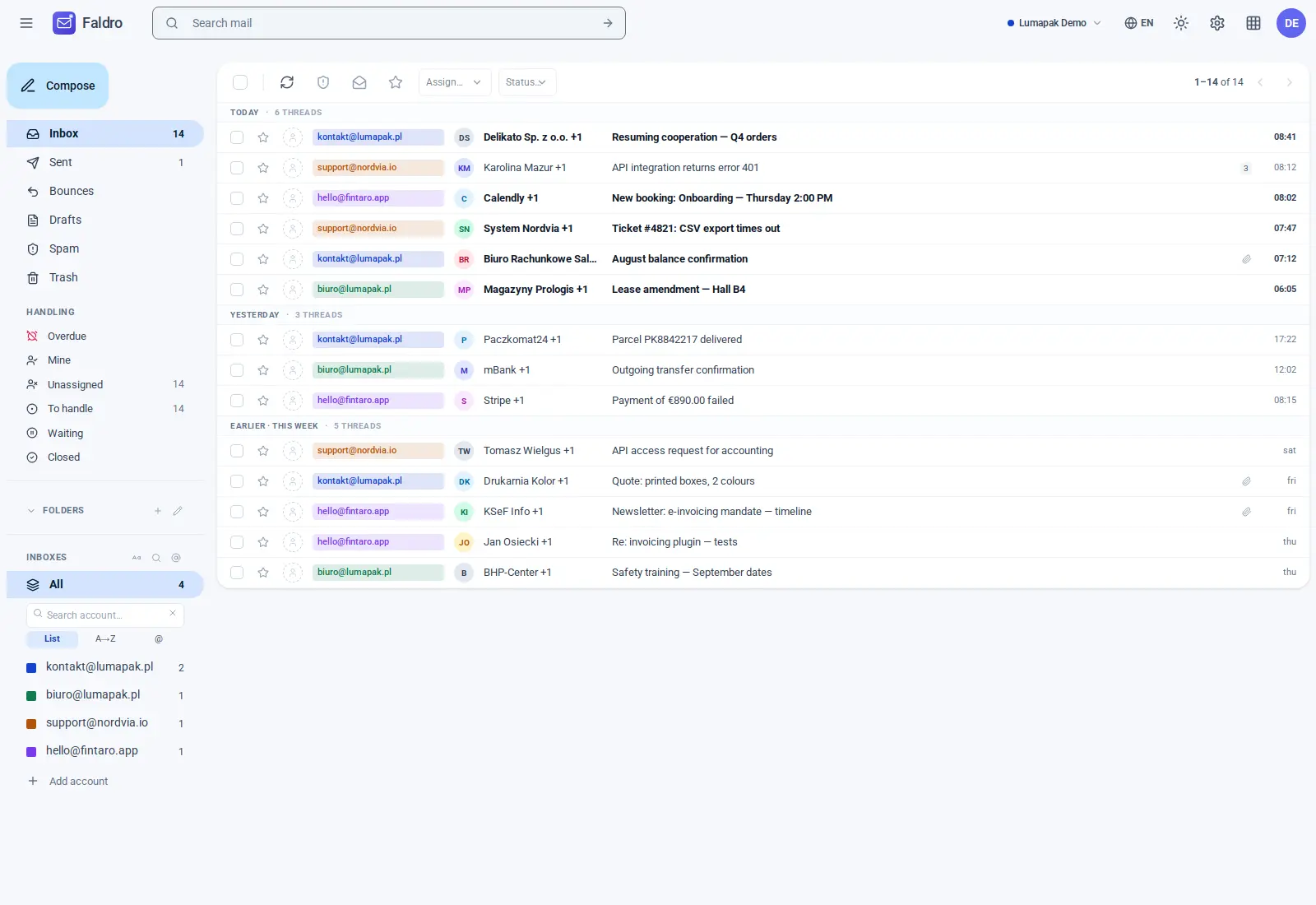
Faldro is a mail client that runs in your browser. You connect your existing mailboxes to it (IMAP/SMTP with any provider), and Faldro fetches messages from them, assembles them into threads, and shows them in a single view — no matter how many addresses and domains you handle. Your mail stays with your provider; Faldro is the layer where you read it, send it, and share it with your team.
Four concepts worth knowing
Organisation — the space where mailboxes and people live. When you create an account, you get your own organisation and become its admin. One person can belong to several organisations and switches between them in the top-right corner.
Mailbox (mail account) — a single IMAP/SMTP address connected to the organisation, e.g. office@company.com. A mailbox has its own server settings, sync priority, signatures and sender identities.
Member — a person with access to the organisation. Every member has one of four permission scopes: Viewer, Sender, All, or Admin. Details in Team and permissions.
Thread — a conversation made up of messages with the same subject and references. This is what the team works on: assignments, statuses, internal notes and labels apply to a thread, not a single message.
How the app is structured
| Area | What you do there |
|---|---|
Inbox (/mail) |
You read, reply, search and organise. The left sidebar has folders, accounts and multi-inboxes. |
| Settings (gear icon) | Configuration tiles: mail accounts, signatures, sender identities, domains, labels, rules, members, data. |
Account (/account) |
Profile, language, plan and billing — things about you, not the organisation. |
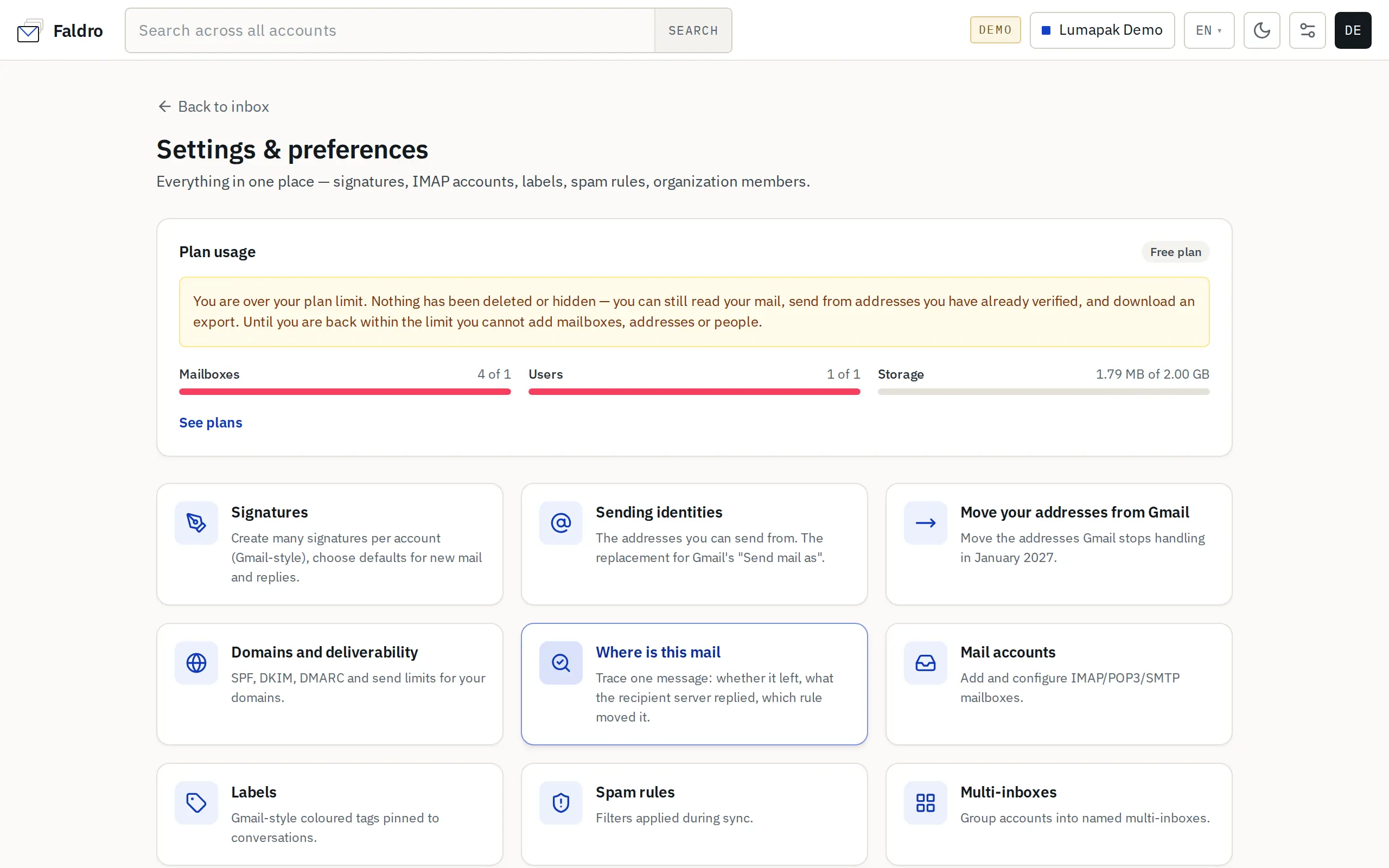
Which tiles are available depends on your permission scope. Someone with the "Viewer" scope will only see signatures for their own accounts and data export; an admin sees everything.
What's next
- Account and organisation — registration, address verification, your first organisation.
- Connecting a mailbox — the account form, settings detection, connection test.
- Gmail migration wizard — if you're coming from addresses previously handled in Gmail.
Did not find the answer?
Check the help section with typical problems or write to us — we reply on working days.