Signatures
Multiple HTML signatures per mailbox, a gallery of ready-made templates, separate defaults for new messages and replies, and how Faldro avoids a double signature.
Updated 19.10.2026
Table of contents
You manage signatures under Settings → Signatures. The card is visible to organisation administrators (the same people who manage mail accounts) — a signature is part of what leaves the company mailbox.
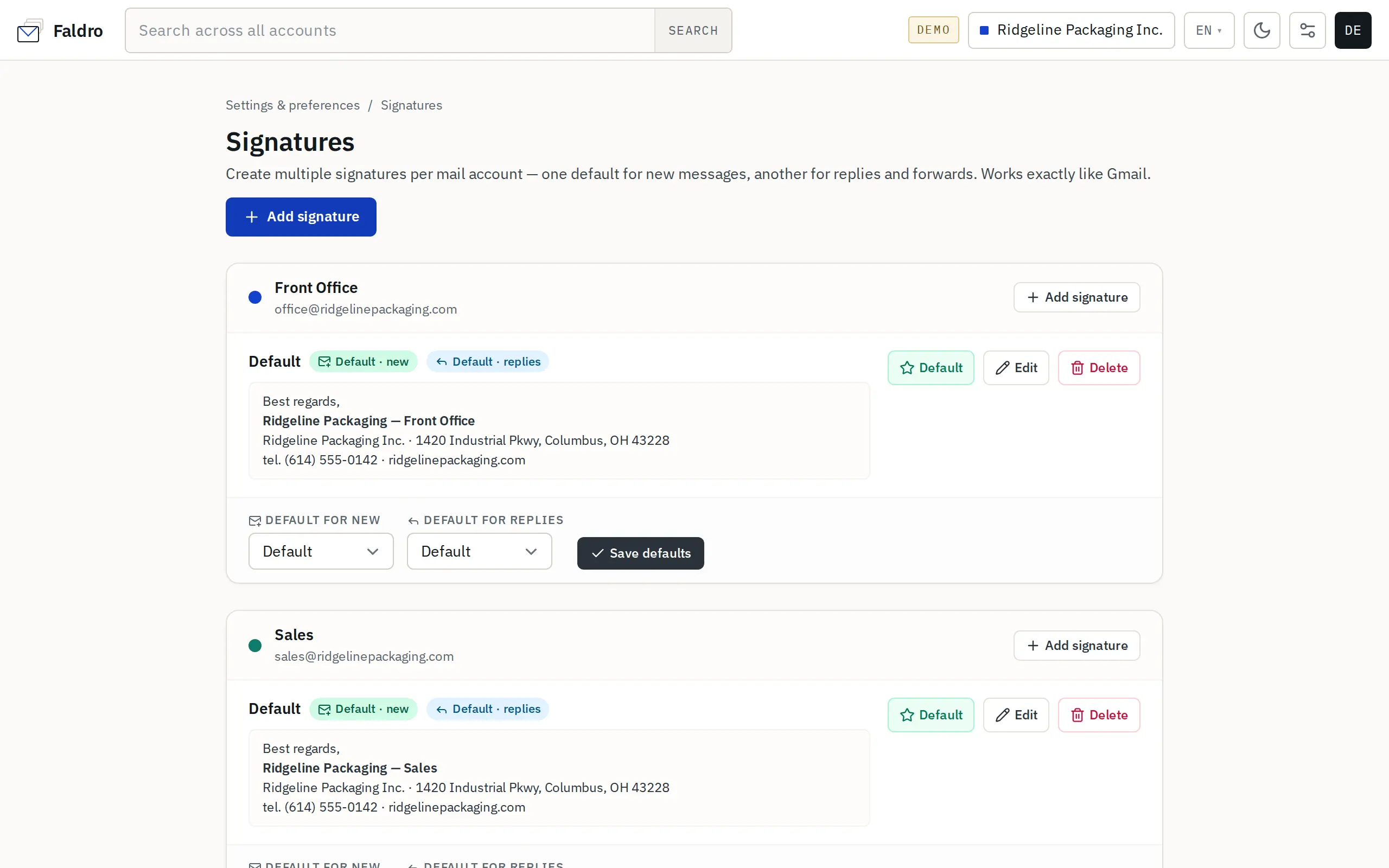
The signatures list
Each mailbox has its own section. A mailbox can have as many signatures as you like, e.g. "Work · English" and "Work · Deutsch". Each signature shows a preview, the Default · new / Default · replies badges, and the Set as default, Edit and Delete buttons.
Below each mailbox's list there are two pickers:
| Field | Meaning |
|---|---|
| Default for new | The signature inserted into the new message window. |
| Default for replies | The signature inserted into replies in a thread and into forwards. |
Either can be set to "— No signature —". Save defaults stores the changes. Set as default next to a signature makes it the default for both at once.
A new signature
Add signature (general, or next to a specific mailbox) opens the Pick a signature template screen with a mailbox picker and three routes:
- A ready-made template — Minimal, Classic, Coloured bar, Corporate or Compact. Use this template opens a form with fields (first name, last name, role, company, address, phone, email, website, LinkedIn, accent colour — depending on the template) and a live preview. Save signature generates the HTML from exactly that data.
- Blank signature — a rich-text editor (bold, italics, links…).
- Paste HTML — for a finished signature from another program; the preview appears alongside as you paste.
When saving you can tick Use as default for new messages and/or Use as default for replies and forwards. Signature HTML is cleaned of unsafe elements (scripts etc.) — formatting, links and images stay.
The signature in the message window
The new message window, the reply and the forward all have a Signature field. The editor inserts the mailbox's default signature (for new mail or for replies) straight away, below where you type. You can pick another of the mailbox's signatures from the list — it swaps live. Changing the mailbox in the first "From" row swaps the signature for the new mailbox's default. The field is hidden when the mailbox has no signatures.
A signature inserted by the editor is marked in the body, so when sending, the server knows it's already there and doesn't append it a second time. The same goes for drafts: when you resume one, the signature isn't inserted again.
When the body has no signature
If the body being sent contains no marked signature, the server appends one itself at the end: first the sending identity's signature (if it has its own), otherwise the mailbox's default signature for that kind of message. This also applies to messages sent through the API.
As a result, choosing "— No signature —" in the message window doesn't produce a message without a signature if the mailbox has a default signature set for that kind of message — the server appends the default. To send without a signature, set "— No signature —" in the relevant default field under Settings → Signatures.
The sending identity's signature only works on that second path: the editor inserts mailbox signatures, not identity signatures.
Did not find the answer?
Check the help section with typical problems or write to us — we reply on working days.