Routing rules
Automatic assignment, status, label and SLA for inbound mail — conditions, actions, rule order and testing against recent messages.
Updated 19.10.2026
Table of contents
Routing rules run on inbound messages as they are fetched: they check conditions (sender, subject, mailbox…) and set up the conversation straight away — assign it, change its status, apply a label or an SLA policy. That way an invoice reaches accounting before anyone has even looked at it.
An administrator creates rules in Settings → Message routing. Other members don't see this card.
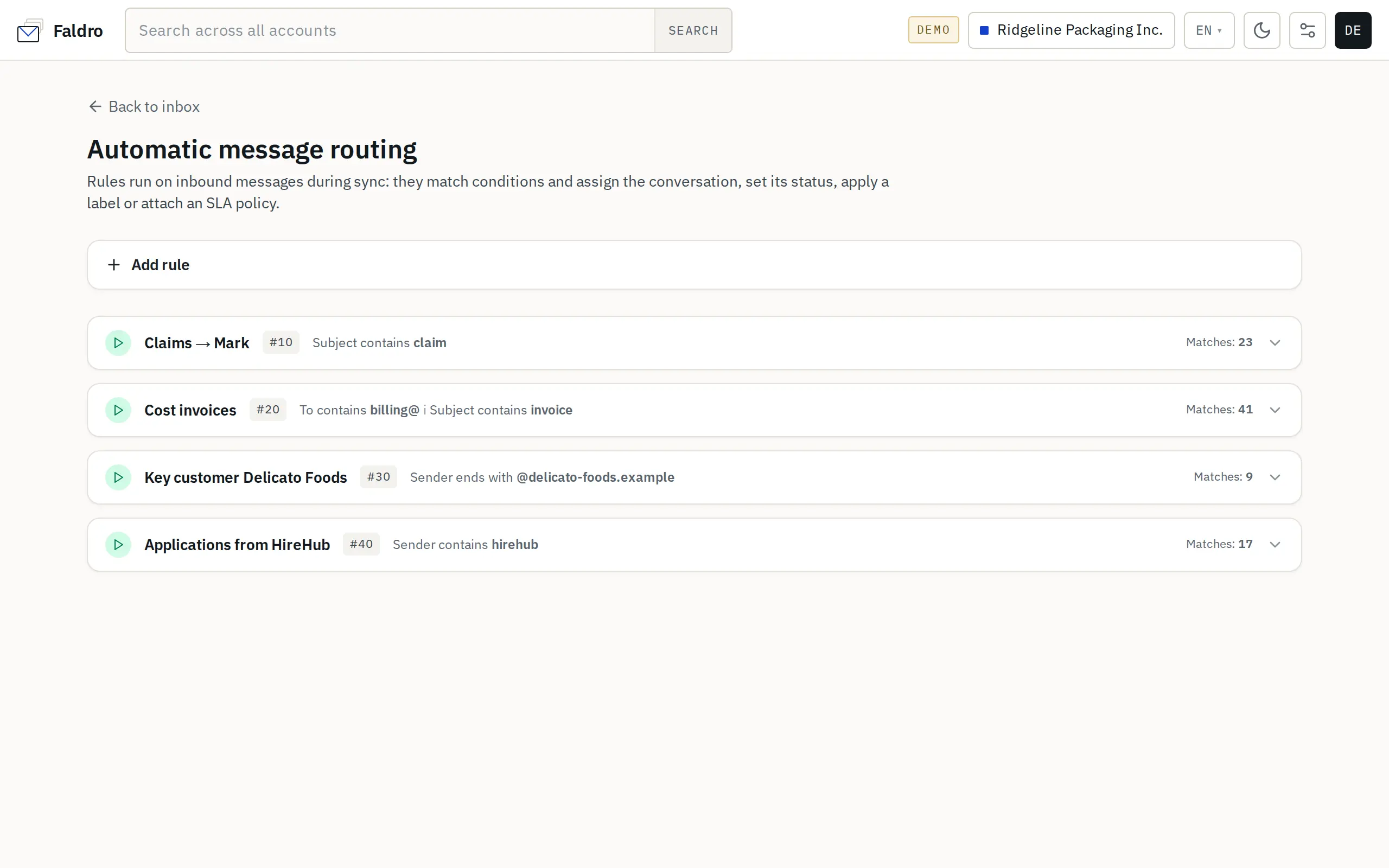
New rule
Click Add rule and fill in the form:
| Field | Meaning |
|---|---|
| Name | E.g. "Invoices → Accounting". Shown in the conversation's activity history. |
| Priority | Order of evaluation: lower number runs first (0–9999, default 100). |
| Match | all conditions (and) or any condition (or). |
| Conditions | "Field — operator — value" rows; Add condition adds another. |
| Actions | What to do with a matching conversation — see below. |
| Enabled | A disabled rule stays saved but doesn't run. |
| Stop after match | On by default: after the first matching rule, later rules aren't checked. |
Conditions
| Field | What it's compared against |
|---|---|
| Sender | Sender's address and name. |
| Sender domain | The part of the address from "@", e.g. @company.com. |
| To / Cc / Recipient (To + Cc) | Recipient addresses. |
| Subject | The message subject. |
| Body | The message text (HTML with tags stripped). |
| Mailbox (id) | Account number; several numbers separated by commas. You'll find the number in the address of the account's edit page. |
| Has attachment | Empty value = has an attachment; no = has none. |
Operators: contains, does not contain, equals, starts with, ends with, regular expression. Matching is case-insensitive. A value can be up to 200 characters, and a regular expression must be valid — otherwise the rule won't save. A rule without any filled-in condition matches nothing.
Actions
| Action | Effect |
|---|---|
| Assign to | Only if the conversation doesn't have an assignee yet — a rule never takes a conversation away from someone who already owns it. |
| Set status | To handle / Waiting / Closed. |
| Apply label | Any of the organisation's labels. |
| Apply SLA | Overrides the policy that comes from the mailbox, e.g. "VIP — 1 h"; the deadline counts from when the customer started waiting. |
| Star it | Stars the conversation. |
| Mark as read | The matching message won't show as unread. |
Each time a rule fires, it increments the rule's Matches counter and adds "rule "…" routed this conversation" to the conversation's activity history.
Order
Rules are checked from the lowest priority up (equal priorities in the order they were created). With Stop after match on, only the first matching rule acts. Without it, later rules can change the conversation too and already see what earlier ones did — for example, a conversation assigned by the first rule won't be reassigned by the second.
Test against recent mail
The Test against recent mail button does a dry run, even before you save: it runs the conditions over the organisation's last 200 inbound messages in the Inbox and shows "Matches X of the last Y inbound messages" plus the subjects of a few matches. Nothing is changed.
The test only checks the "Body" condition against a short snippet of each message, so in practice such a rule may catch more than the preview suggests.
When rules run and when they don't
- On every new inbound message — including a customer's reply in an existing conversation.
- Not on: messages you sent, spam, trash, drafts, bounces, or messages that are more than 7 days old when fetched (e.g. the archive pulled in when you connect a mailbox). Rules also don't apply retroactively to mail that's already in the mailbox.
- A new or edited rule takes effect within about a minute.
Did not find the answer?
Check the help section with typical problems or write to us — we reply on working days.