Mail wasn't delivered to the recipient
How to trace the fate of one message with the delivery log — from our server to the recipient's server.
Updated 02.09.2026
Table of contents
In Settings → Where is this mail (delivery log), you can check what happened to a specific message: when it went out, through which server, what the recipient's server replied, and under what identifier it accepted it. You'll also see failed sends — these leave no trace in the Sent folder.
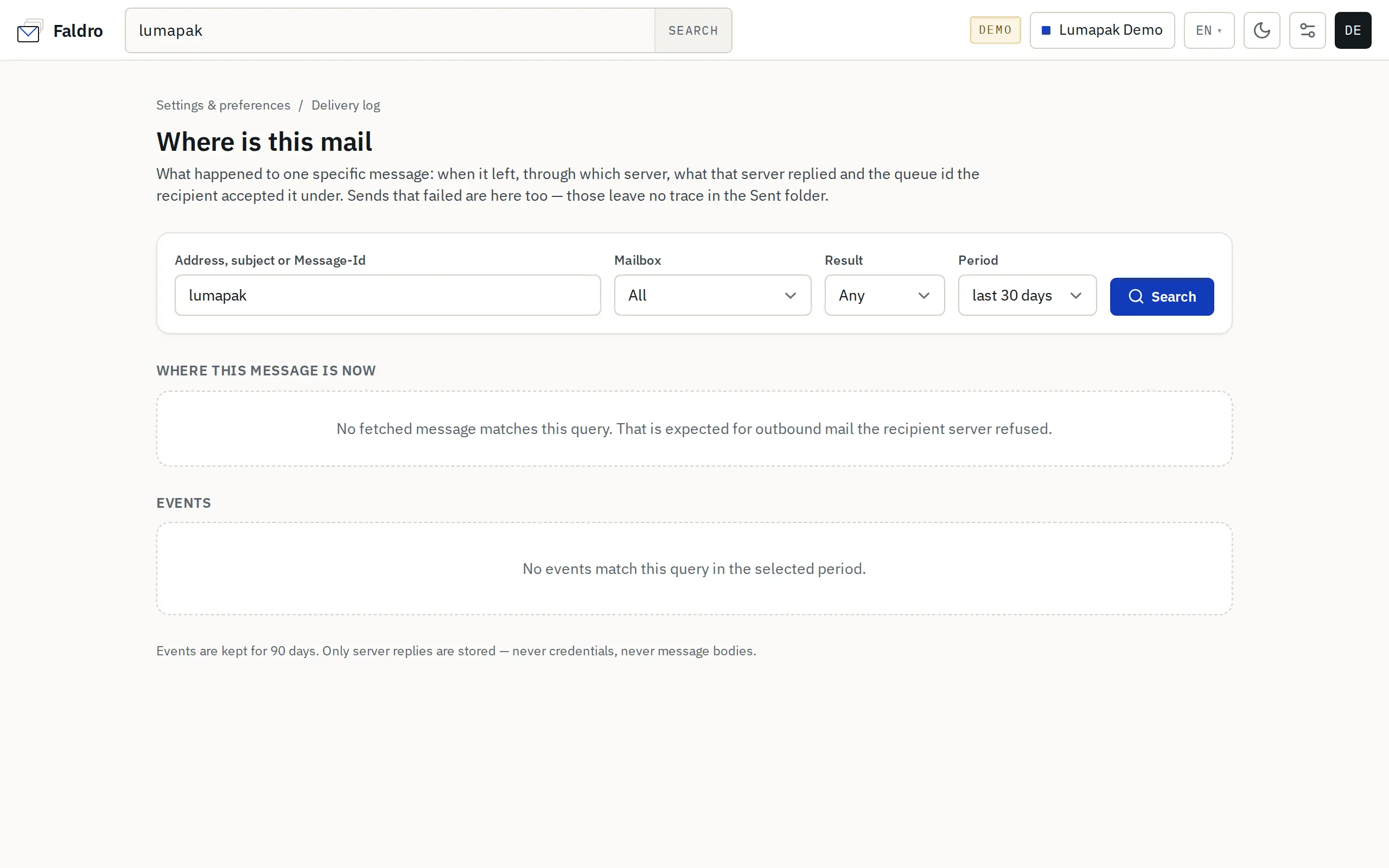
How to search
- Enter the recipient's address, part of the subject, or a Message-Id (e.g.
<abc123@…>). - Narrow it down by mailbox, result (sent / rejected / filtered) and time period.
- Click Search.
The result has two parts:
- Where this message is now — matching messages in your mailboxes (folder, account). For outgoing mail that the recipient's server didn't accept, this list is empty — that's normal.
- Events — a timeline: server, response code, duration, the full text of the server's response. For incoming messages moved by a spam rule, you'll see the rule's name and the action taken.
What the results mean
| Result | Meaning |
|---|---|
| Sent, code 250 | The sending server accepted the message. If the recipient doesn't have it, ask them to check spam and get a Message-Id from their side; from there it's a problem on the recipient's end or with domain reputation. |
| Rejected, 5xx | The server refused it. The response body says why: unknown address, no permission for the sender address, SPF/DKIM, a limit. |
| Rejected, 4xx | A temporary refusal (greylisting, overload). Faldro retries; if it ultimately fails, the message lands in Bounces. |
| Filtered | An incoming message moved by a spam rule — it hasn't disappeared, it's in the Spam folder. |
When sending regularly lands in spam
That's not a single-message issue, but a domain one. Check Settings → Domains and deliverability: SPF, DKIM and DMARC must all be green, and the daily sending limit must not be exceeded. Details: Domain readiness.
The log is available to people who manage accounts and have access to the event log.
Contact the team
Write to hello@faldro.com. Include your organisation address and, if possible, the subject or Message-Id of the message you are asking about.